Role Request Approval with PrivX Authorizer
Required PrivX Authorizer version: 2.0.0 or later
PrivX Authorizer 1.7.x does not support this feature. We recommend upgrading to PrivX Authorizer 2.0.0 or later through Google Play or the App Store.
PrivX users can use the mobile app PrivX Authorizer to review and respond to role-membership requests without opening the PrivX Web UI. PrivX administrators register the deployment with the Mobile Application Gateway and enable mobile approval for the required workflows.
PrivX Authorizer allows you to respond quickly to role requests on a mobile device and is intended for use alongside the PrivX Web UI. Use the PrivX Web UI to review additional request details when needed and to revoke approvals.
To use PrivX Authorizer for role request approvals, complete the following configuration:
-
PrivX administrators:
- Ensure that the PrivX online license includes Mobile Gateway and Mobile Approvals. For more information, see Setting Up Licensing for PrivX Authorizer.
- Set up PrivX Mobile Gateway and register PrivX with Mobile Application Gateway.
- Enable mobile approval for the required workflows.
- Configure the maximum number of eligible approvers and the expiry time for mobile role-request approval transactions.
-
PrivX users:
- Pair PrivX Authorizer with PrivX.
- Subscribe each paired device to mobile approval.
After setup, approvers receive notifications when role requests require their decisions. Approvers can approve or deny these requests in PrivX Authorizer.
Mobile Approval Settings
In Administration → Settings → Workflow Engine, you can configure general mobile approval settings:
-
Notification Threshold sets the maximum number of eligible approvers to whom PrivX sends mobile notifications for each request. If the number of eligible approvers exceeds this value, PrivX does not send mobile notifications at all. The allowed range is 1–25.
-
Role Request Transaction TTL (Days) sets the expiry time, in days, for mobile role-request approval transactions. The allowed range is 1–7 days. The default value is 4 days.
Subscribing to Role Requests
Subscribe a paired device to receive mobile approval notifications on that device.
Pairing a device does not automatically enable role request notifications. Subscriptions apply to individual devices. If you have multiple paired devices, subscribe each device separately.
To subscribe a device:
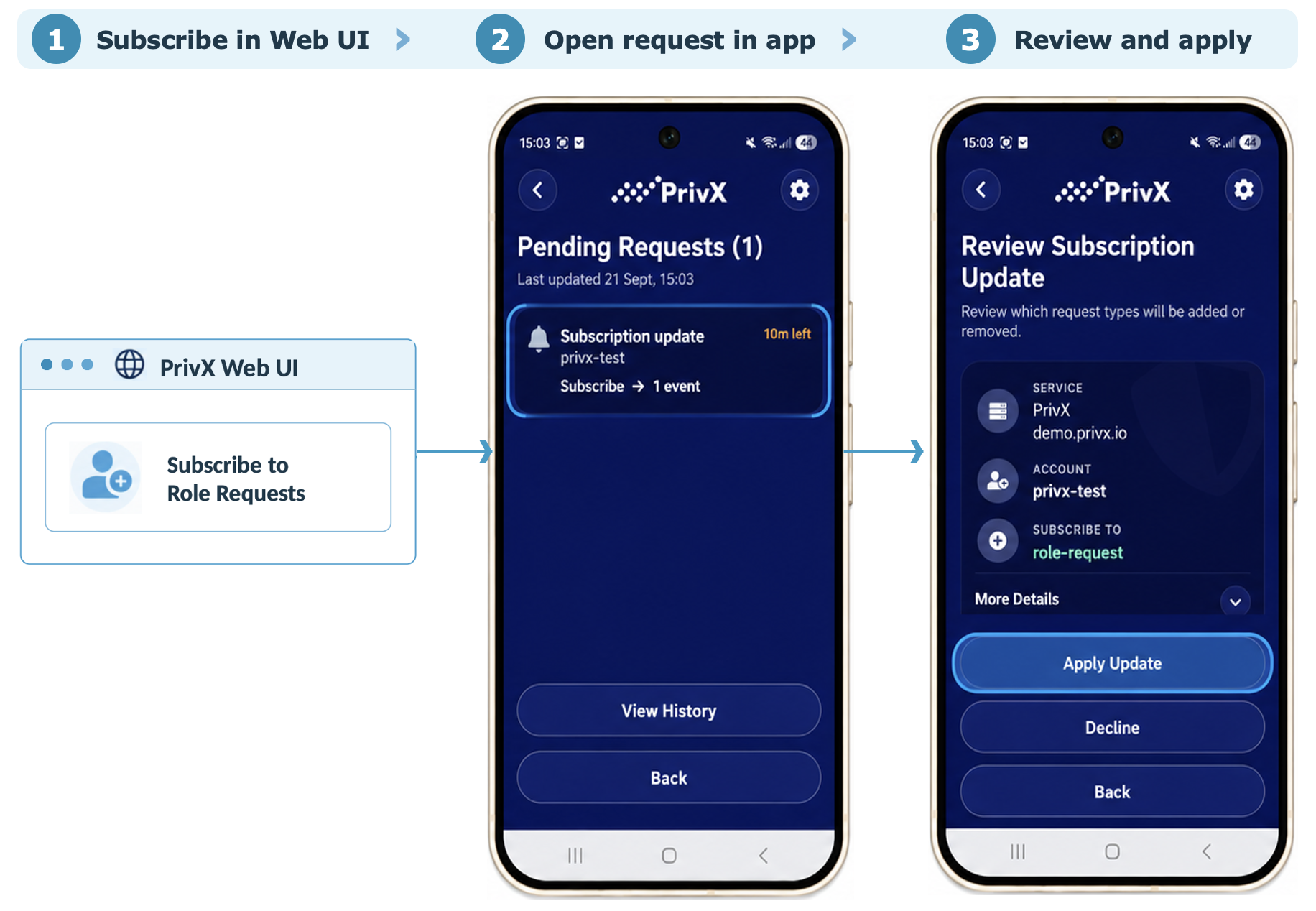
- In the PrivX Web UI, go to your account page. Under Credentials → Paired Devices, select one of the paired devices and then select Subscribe to Role Requests. PrivX sends a subscription update request to the device.
- In PrivX Authorizer, select the corresponding PrivX service under My Services, and then under Pending Requests open the Subscription update request.
- Verify that the service and account are correct and that Subscribe To lists role-request.
- Select Apply Update to complete the subscription.
The subscribed device can now receive push notifications for role requests that you have permission to approve.
To stop receiving notifications for new role requests, select Unsubscribe from Role Requests for the device. You can still approve or deny requests previously received in PrivX Authorizer.
Approving or Denying Role Requests
PrivX Authorizer sends a push notification to an approver’s subscribed device when a role request requires a decision.
Approvers do not need to approve a role request immediately. The request remains available in PrivX Authorizer for the period specified by the Role Request Transaction TTL (Days) setting.
To process the pending request:
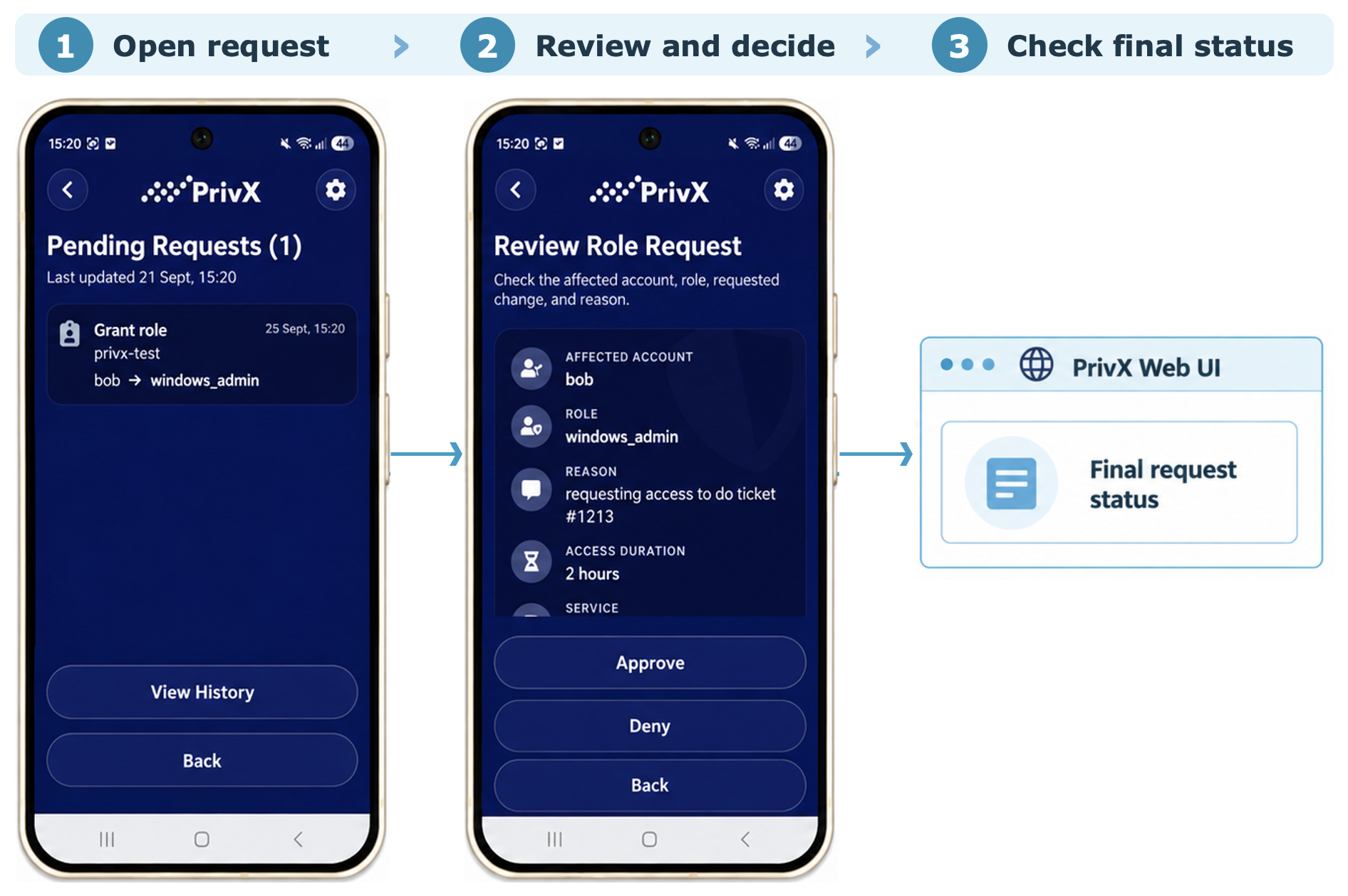
- In PrivX Authorizer, open the notification for the corresponding PrivX service.
- Open the pending role request and review the information about the requester, requested role, and other details.
- Select Approve or Deny. Confirm your decision if prompted.
PrivX Authorizer displays your decision but does not confirm whether PrivX applied it. For example, another approver may have already processed the request. To check the final request status, use the PrivX Web UI, where you can also review and process role requests.
The mobile role request notification displays the information that the requester entered in Requests → My Requests, including the requested action and role, membership duration, and justification.
Troubleshooting
Role request notifications do not appear
If a role request notification does not appear on the mobile device, verify the following:
- The PrivX online license includes Mobile Gateway and Mobile Approvals.
- The device uses PrivX Authorizer 2.0.0 or later.
- The device is paired with PrivX.
- The device is subscribed to Role Requests approvals.
- Enable mobile approvals is selected for the workflow.
- The user has the approver role specified under Approvals for the corresponding workflow step.
- The number of eligible approvers does not exceed the configured Notification Threshold. To check the notification threshold, go to Administration → Settings → Workflow Engine. For example, if Notification Threshold is set to 10 and the request has more than 10 eligible approvers, PrivX does not send mobile notifications for that request. Approvers can still review and process the request in the PrivX Web UI.
If push notifications do not arrive, check that notifications are enabled for PrivX Authorizer in your device settings:
- iOS: Go to Settings → Notifications → PrivX Authorizer and enable Allow Notifications.
- Android: Go to Settings → Notifications → App notifications, select PrivX Authorizer, and enable notifications. The settings path and labels may vary by device and Android version.
You can also open PrivX Authorizer to check for pending requests.
Requests were created before device pairing
PrivX sends role request notifications only to devices that are paired and subscribed when the request is created. Pairing or subscribing a device does not send notifications for existing requests. To receive a mobile notification, the approver must pair and subscribe the device before the role request is created.
The screenshots show PrivX Authorizer on Android. The interface may differ on iOS and between application versions.