Multi-Factor Authentication with PrivX Authorizer
Required PrivX Authorizer version: 1.7.x or later
PrivX Authorizer 1.7.x and 2.x.x support MFA login approval. We recommend upgrading to PrivX Authorizer 2.0.0 or later through Google Play or the App Store.
The PrivX Authorizer app enables multi-factor authentication (MFA) for PrivX logins. Using PrivX Authorizer as MFA requires connectivity to the PrivX Mobile Gateway cloud service. The service is operated by SSH Communications Security.
To use PrivX Authorizer for MFA, complete the following configuration:
-
PrivX administrators:
- Ensure the PrivX deployment satisfies the Prerequisites.
- Enable MFA with PrivX Authorizer for each required user directory.
-
PrivX users:
- Install the PrivX Authorizer app to their mobile device.
- Pair PrivX Authorizer with PrivX.
Enabling MFA with PrivX Authorizer
To enable MFA with PrivX Authorizer:
- Register your PrivX deployment with the Mobile Application Gateway. To do this, go to Administration → Deployment → Mobile Application Gateway, then click Register.
- In Administration → Directories, edit the directory for which you want to enable MFA.
- Expand Advanced Directory Settings, then under Multi-Factor Authentication Settings, set MFA Type to PrivX Authorizer (mobile app).
- Save your changes.
After MFA is enabled, users in the directory must approve their PrivX logins with PrivX Authorizer. Allow users sufficient time to install and pair PrivX Authorizer before you enable MFA for their directories.
Approving MFA Login Requests
After MFA is enabled, users can approve each subsequent PrivX login with PrivX Authorizer:
-
In PrivX Authorizer, select your PrivX service under My Services.
-
Under Pending Requests, select the Sign-in request.
-
On Review Sign-In, verify that the account is correct and that the code matches the code displayed in the PrivX Web UI.
-
Select Approve. Confirm your decision using your device’s authentication method if prompted.
importantApprove the sign-in request only if you initiated it and the account and verification code match those in the PrivX Web UI. Otherwise, select Deny.
-
Return to the browser. PrivX completes the login and opens the PrivX Web UI.
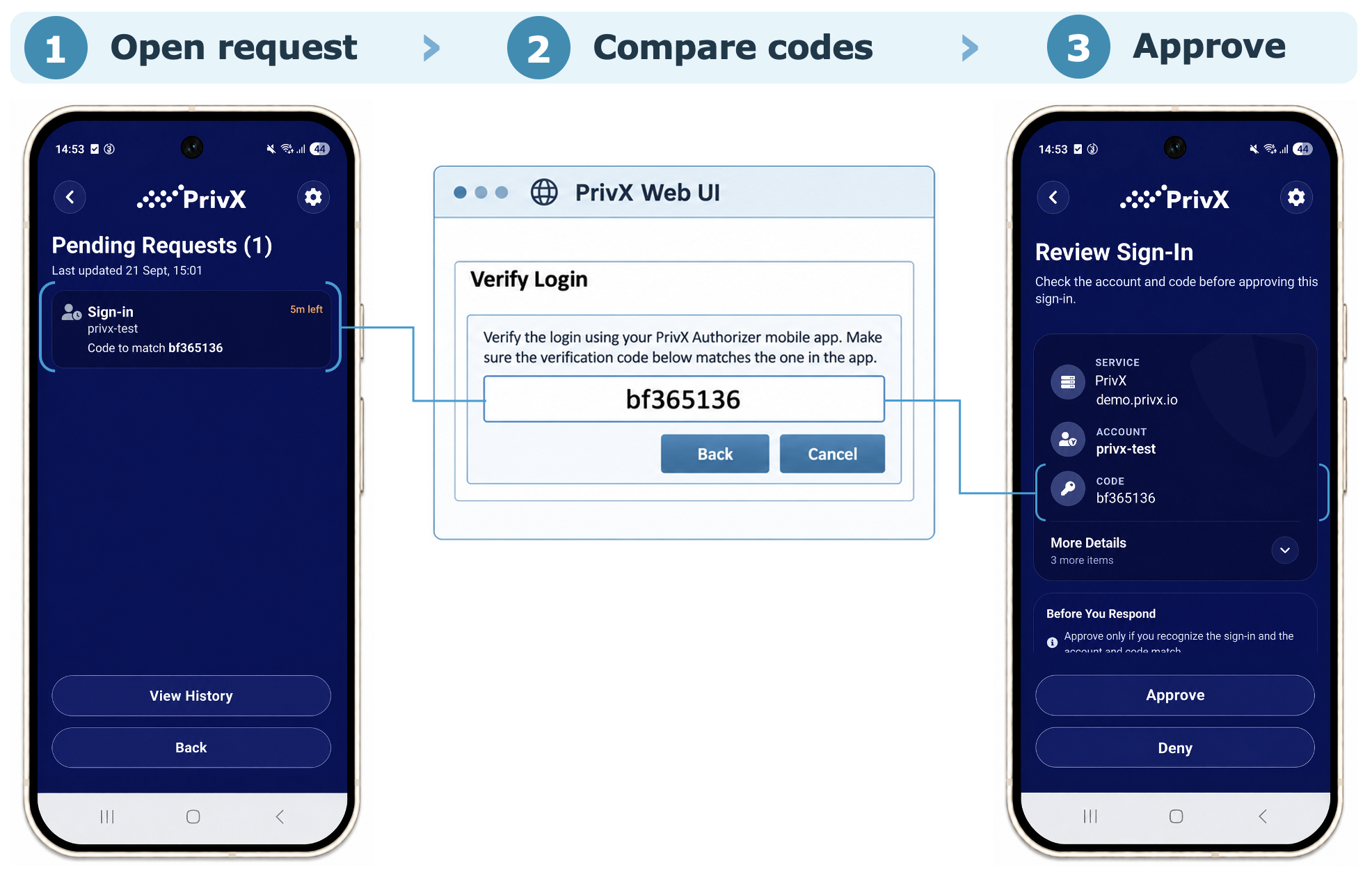
The screenshots show PrivX Authorizer on Android. The interface may differ on iOS and between application versions.