Rotating Stored Passwords
Automatically rotate passwords for target accounts using stored passwords. When enabled, PrivX will periodically:
- Assign a new password to target accounts, according to password-rotation policy.
- Automatically store and update the new password to PrivX configuration.
PrivX can perform password rotation over SSH or WinRM.
The high-level steps for enabling password rotation involve:
- Creating password policies, which define how passwords are rotated.
- Creating rotation scripts.
- Enabling password rotation on target hosts and accounts.
Instead of password rotation, we recommend doing away with passwords altogether by using certificate-based authentication whenever possible. For more information about setting up certificate authentication, see SSH Certificate Authentication.
Prerequisites
Before enabling password rotation, verify the following prerequisites:
-
Unix target hosts must be configured with at least one SSH service. The SSH service used for rotation must be configured with the host keys of the target host. Trust on first use will not work for this purpose.
-
Windows target hosts must be configured with WinRM. For additional instructions about enabling WinRM, see Enabling Remote Commands on Windows with WinRM.
-
Choose whether to rotate passwords using an administrator account or each target account:
-
Using an Administrator account (recommended): Configure access to a privileged account with permissions to change other users' passwords. We recommend this method because you do not need to manually store individual users' passwords in PrivX.
Configure non-interactive access to the administrator account. For SSH, the admin account must be set up with certificate or stored-password authentication. If certificate authentication is used, then the admin account must be configured so that their sudo password is not needed for changing passwords.
WinRM configuration always needs a password set for the target account that is used for rotation.
-
Using individual accounts: All target users requiring password rotation must be configured with valid stored passwords in PrivX. Target users must have permissions to change their own passwords using their default shell.
-
Account passwords may become irrecoverable in case of desynchronization issues. For this reason we recommend not setting up password rotation for admin accounts.
Creating Password Policies
Password policies in PrivX define:
- How often passwords are rotated.
- The strength of automatically-generated passwords.
- Recovery behavior in case of failures in automation.
To create a new password policy:
-
On Administration → Deployment → Deploy Password Rotation, click Add Password Rotation Policy.
-
Provide the required information for the password policy. Provide at least the following:
- A unique name.
- A rotation interval.
- Maximum password revisions and retries.
noteSet up reasonable retries and retry intervals. This way random downtime on hosts won't cause PrivX to mark password rotation as failed, which halts PrivX from trying to rotate passwords on affected targets.
-
Click Save to create the new password policy.
To review password policies, go to Administration → Deployment → Deploy Password Rotation.
Creating Password-Rotation Scripts
Password-rotation scripts are shell scripts, which PrivX runs to rotate passwords on target accounts. Password-rotation scripts enable adapting to different host configurations and target host shell versions.
PrivX provides default password-rotation scripts on Administration → Deployment → Deploy Password Rotation, under Script Templates. These can be used as-is in common environments, or used as a basis for scripts to suit your custom environment.
If none of the existing password-rotation scripts suit your needs, you can create your own by clicking Add Script Template. Note the following when creating your own scripts:
- The script must define behavior that results in successfully changing target-account passwords, without user interaction.
- Depending on your configuration, password-rotation scripts can be run as the target users, or as an admin user.
- PrivX runs password-rotation scripts using the users' default shell. Typically (*)sh or PowerShell on Unix and Windows respectively.
Password rotation scripts are composed of variables and shell commands. Variables are used for synchronizing user-name and password data between PrivX and the target host.
Linux SSH pipe/stdin
These variables are used to tell PrivX to use/not use stdin over ssh. Examples in this document are provided for bash shell:
Variables:
@pipe_over_ssh
Values: true|false
When enabled, PrivX echoes data over ssh pipe to shell in target making data invisible in process tables and in shell command history increasing security.
@use_sudo_pass
Values: true|false
When enabled, use sudo password to elevate the account in target host. Sudo pass is the main account password, when main account used for rotation. If using individual account, sudo_pass is the current account password.
@stdin
Values: text, or template variables to echo through pipe
For example:
$sudo_password\n$user_password_list
Would equal when run in shell in local computer:
(echo sudopass; echo user1:pass1; echo user2:pass2) | ssh target.ip.com sudo -k -S chpasswd
@stdin=$old_password\n$password\n$password
Would equal when run in shell in local computer:
(echo pass1; echo pass2; echo pass2) | ssh target.ip.com passwd
Both Windows & Linux
$old_password
The current password of the target account.
$password
The new password of the target account.
$username
The user name of the target account
@list_format
How the username and password are written to username-password-list.
For example:
$username:$password
@list_item_prefix
If the username/password list need to be prefixed to the script.
@list_separator
How the username/password items are separated to produce a list usable in the script.
For example: "\n"
@rotation_server
Specifies the Dedicated Rotation Server on which to run the password-rotation script. This variable uses the following format:
@rotation_server="<uuid>:<username>@<address>:<port>"
<uuid>- The UUID of the rotation server.<username>- The name of the account used to run password-rotation commands.<address>- The address of the rotation server.<port>- The port number of the SSH/RDP service on the rotation server.
Enabling Password Rotation on Target Hosts and Accounts
To enable password rotation on a host:
-
On Administration → Hosts, Edit the target host's settings.
-
Under Options, enable Rotate account passwords.
-
Under Accounts, enable Password rotation for each desired account.
-
Under Password rotation, configure how passwords are rotated on all enabled accounts.
-
Click Save to apply the settings. Password rotation should now be enabled.
To verify successful password rotation, click the host back on the Administration → Hosts page to see its details. Under Accounts, verify for target accounts that Password rotation is Enabled and that Rotation status is OK.
Click ☰ and select Rotate Now to immediately test password rotation.

Account displaying password-rotation details.
Force Password Rotation
After password rotation is set up, you can force immediate password rotation per account.
To resume automatic password rotations on accounts where rotation has failed beyond max retries, you will need to force password rotation. Forcing password rotation can also be used when you need to immediately change target-account passwords.
To force password rotation on a target account:
- On Administration → Hosts, click a host to see its details.
- In the Accounts section, click ☰ next to an account, then select Rotate Now.
PrivX immediately attempts to rotate the password and notifies you when the operation finishes.
Dedicated Rotation Server
Configure PrivX to run password-rotation scripts on a dedicated password-rotation server (rotation server). A rotation server is a separate machine from target hosts, but with the ability to change target-account passwords.
The setup involves the following steps:
- Set up PrivX access to the rotation server.
- Create a password-rotation script that targets the rotation server.
- Enable password rotation using this rotation script.
To add the rotation server to PrivX:
- In the PrivX Web UI Administration → Hosts click Add Host.
- In the host's settings, under Services, add an SSH or RDP service depending on whether you are using SSH or WinRM for password rotation. Then, under Accounts, add the account used to rotate target-account passwords. This account must be accessible to the
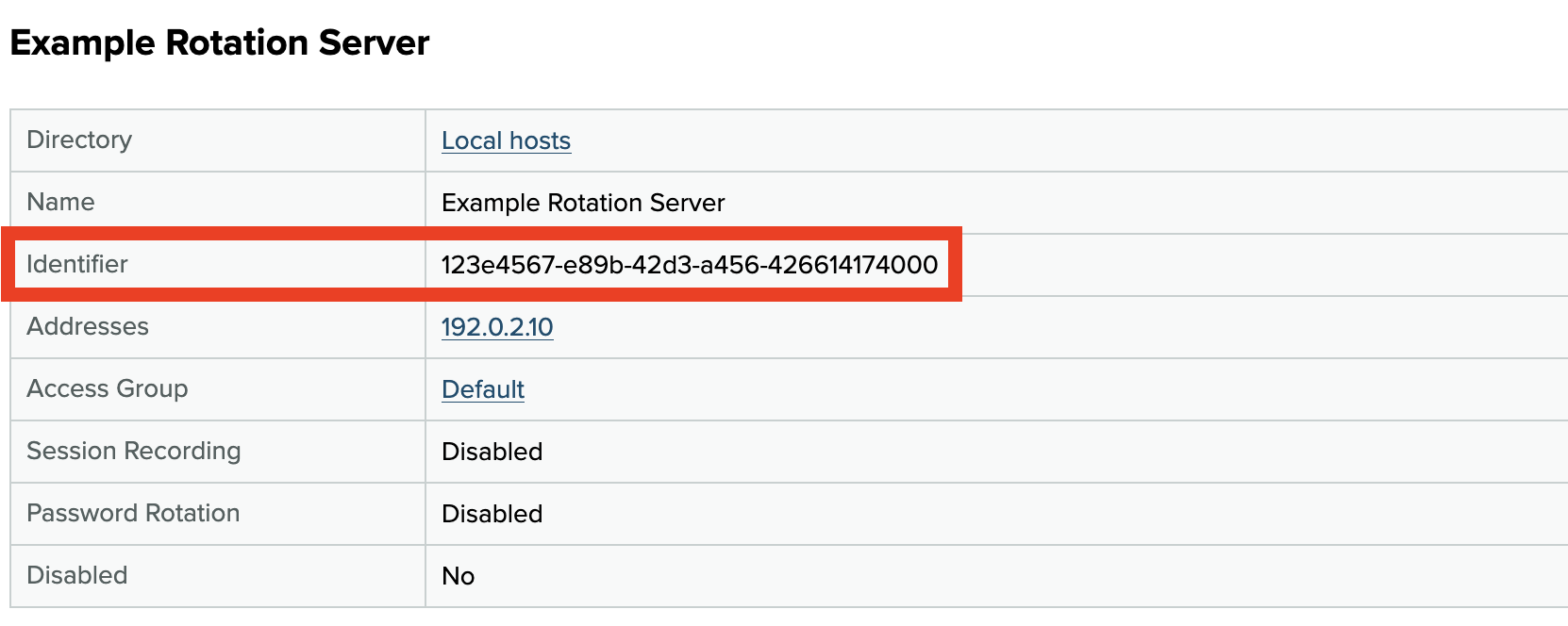
privx-adminrole. - Back in Administration → Hosts, note the rotation server's Identifier, which is the host's unique UUID in PrivX. You will need this UUID to configure the password-rotation script.
To create a password-rotation script that runs on the rotation server, create a regular rotation script and add @rotation_server in the following format:
@rotation_server="<uuid>:<username>@<address>:<port>"
The following example shows a basic password-rotation script that targets a rotation server:
@pipe_over_ssh=true
@stdin="$username\n$password"
@rotation_server="123e4567-e89b-42d3-a456-426614174000:rotator@192.0.2.10:22"

#!/bin/bash

read username
read password

export username
export password

/example/password-rotation-command
Enable password rotation for target hosts and accounts using the previously created rotation script. For more information, see Enabling Password Rotation on Target Hosts and Accounts.
For a more detailed example of setting up a rotation server, see Web Target Password Rotation with Rotation Server.
Examples
Enabling Remote Commands on Windows with WinRM
To enable password rotation on Windows hosts, configure remote-command support using Windows Remote Management (WinRM).
To enable WinRM on a Windows host:
The instructions in this example are verified against Windows Server 2019. Adapt these instructions as needed for other platforms. The commands are only for testing purposes and are not suitable for production environments.
-
Gain Administrator access to the target host.
-
Create a certificate for HTTPS connections:
$Cert = New-SelfSignedCertificate -CertstoreLocation Cert:\LocalMachine\My -DnsName "test-windows" -
Enable remote PowerShell:
Enable-PSRemoting -SkipNetworkProfileCheck -Force -
Create an HTTPS listener using the certificate created earlier:
New-Item -Path WSMan:\LocalHost\Listener -Transport HTTPS -Address * -CertificateThumbPrint $Cert.Thumbprint -Force -
Open port 5986 for WinRM access:
New-NetFirewallRule -DisplayName "Windows Remote Management (HTTPS-In)" -Name "Windows Remote Management (HTTPS-In)" -Profile Any -LocalPort 5986 -Protocol TCP -
Finally, configure WinRM with:
winrm quickconfig
The Windows host now accepts remote commands over WinRM. You can now enable password rotation on the host
Web Target Password Rotation with Rotation Server
This example describes how to enable password rotation for an existing web target using a dedicated rotation server. The setup involves the following steps:
- Adding the rotation server to PrivX.
- Creating a password-rotation script that targets the rotation server.
- Enabling password rotation on web targets.
This example assumes the following web target, rotation server, and password policy:
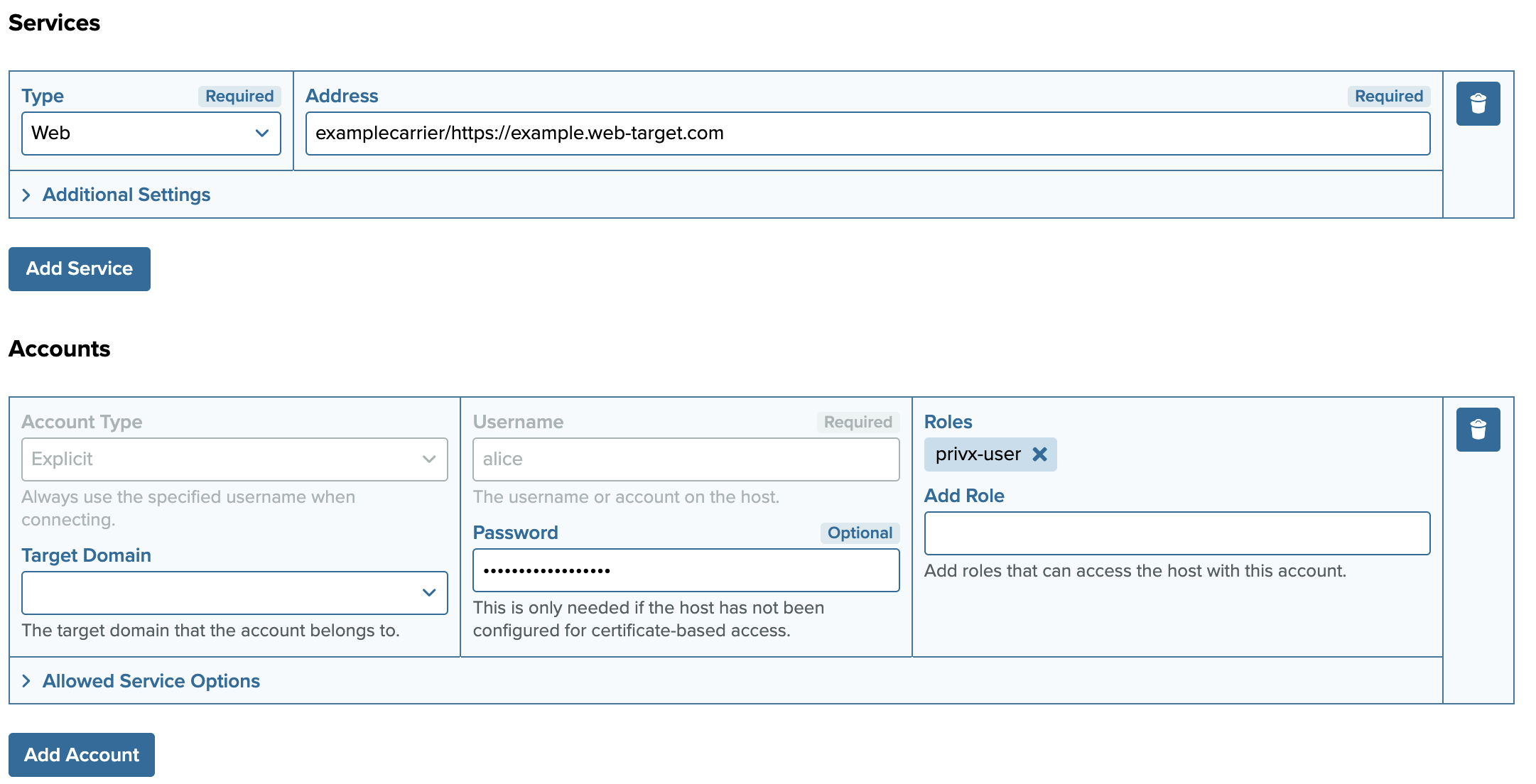
Web Target
- Defined as
Example Web Targetin PrivX, hosted athttps://web-target.example.com. - Allows password authentication for the
aliceaccount, which is available to all PrivX users.
Rotation Server
- A Linux server at
192.0.2.10, that accepts SSH connections on port22. - The user
rotatoron the rotation server can use/example/change-password-commandto change the web-target accounts' passwords.
Password Policy
- A policy named
Example Password Policy, defined in PrivX with settings of your choice. We recommend enabling Rotate on Release to make password rotation easier to test.
Setting Up Password Rotation with Rotation Server
First, add the example rotation server to PrivX:
-
In the PrivX Web UI Administration → Hosts, click Add Host.
-
Add the example rotation server's SSH service with its address and port. Also add the
rotatoraccount with Roles set toprivx-admin.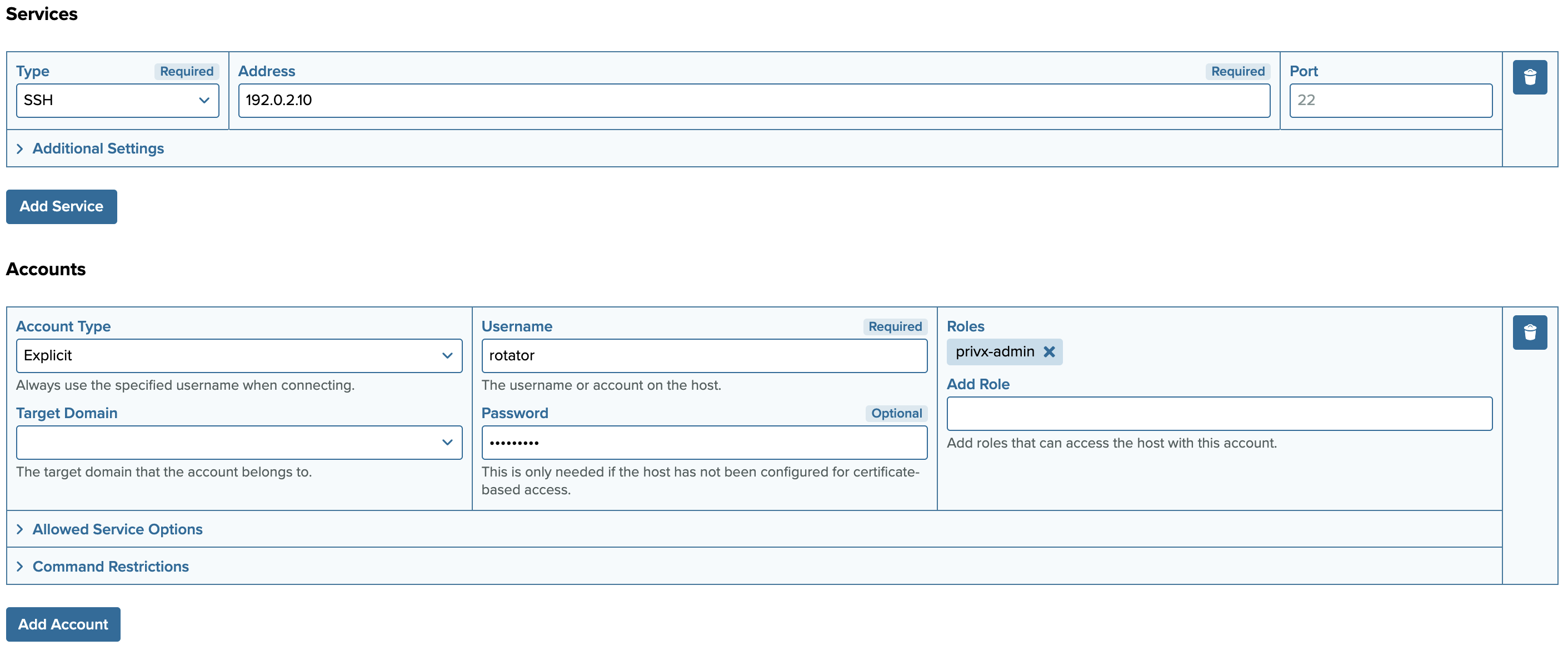
-
Save the host, then return to Administration → Hosts, find its entry, and select View. Note the rotation server's Identifier UUID. Use this UUID to configure the password-rotation script.
Next, create a password-rotation script that runs on the rotation server:
-
In the PrivX Web UI Administration → Deployment → Deploy Password Rotation under Script Templates, click Add Script Template.
-
To target the rotation server, the script must include a
@rotation_serverentry. Using the example rotation server's details, the entry is:@rotation_server="123e4567-e89b-42d3-a456-426614174000:rotator@192.0.2.10:22"The following full script example runs on the rotation server and invokes the password-rotation command, while passing the required credentials from PrivX:
@pipe_over_ssh=true@stdin="$username\n$password"@rotation_server="123e4567-e89b-42d3-a456-426614174000:rotator@192.0.2.10:22"#!/bin/bashread usernameread passwordexport usernameexport password/example/change-password-commandSave the script. In this example, name the script
Example Rotation Script.
Finally, enable password rotation on Example Web Target:
- In the PrivX Web UI Administration → Hosts, select Edit for
Example Web Target. Then under the host's Options, enable Rotate account passwords. - Under the host's Password Rotation section, set up password rotation using the previously created rotation script and the example rotation server:
- Protocol: SSH
- Rotation Policy: Example Password Policy
- Operating System: Linux
- Rotation Script: Example Rotation Script
- Rotation Account Type: Rotate passwords with individual account (since this example does not use root).
- Under the host's Accounts, expand
alice's Password Rotation section, then enable Rotate this account and Allow explicit password checkout. - Save your changes.
You have now configured the following:
- Allow PrivX to connect to the rotation server, and to run commands there to change the web-target accounts' passwords.
- Enabled password rotation for the web target's accounts. With Allow explicit password checkout also enabled, PrivX users connecting to the web target in the PrivX Web UI can also manually check out the password during their session.
Testing Password Rotation
You can test password rotation as follows:
- Log into PrivX and under Connections → Hosts select the target
alice @ examplecarrier/https://example.web-target.com. - On the connection view's Secrets tab, click Checkout Secret, then copy the secret to verify the account's current password.
- If Rotate on Release is enabled in the web target's password-rotation policy, click Release Secret, then Checkout Secret again to verify that the account's password has changed. If Rotate on Release is disabled, the account password changes after the rotation interval specified by the password policy.