Access Groups
You can use access groups to provide roles with management permissions over certain hosts. This can be useful when you want to delegate management of certain hosts to separate users or roles.
The high-level steps for delegating host management involve:
-
Create an access group.
-
Put roles into the access group, and set management permissions.
-
Deploy hosts into the access group.
To create an access group:
- On the Administration→Access groups page of the PrivX GUI, click Add Access Group. Provide the required information and click Save.
To put roles into access groups, and to set management permissions within the access group:
-
On the Administration→Roles page, Edit a role to display its settings.
-
Expand Permissions, then set the following:
-
Set the Access group for this role.
-
Select permissions this role has in the access group. Note that some Permissions are access-group specific, while others are global.
Deploy hosts into the access group:
-
Use a host deployment script to deploy a host to the correct access group. For more information about script-based host deployment, see Script-Based Certificate-Authentication Setup.
-
For hosts in cloud directories, set the host tag privx-access-group or privx-access-group-id before adding the directory to PrivX. For more information about host tags, see Configuring Access Using Host Tags.
To change the access group of an already-deployed host, run the host-deployment script with the correct access group on the host.
Configuring Access-Group Subadmins to Manage Access
You can grant a PrivX user permissions to manage access within specific access groups. Such access-group subadmins may for example be project leads whose projects involve certain network hosts and for managing access for their team members. High-level setup involves:
- PrivX Administrators set up access groups, then provide subadmin permissions.
- Subadmins create roles and allow them access to targets within their access groups.
To provide subadmin permissions to a PrivX user:
-
Create a role that meets these conditions:
- Set the correct Access Group for the role.
- Enable the permissions access-roles-manage, roles-view.
- Also add view and manage permissions for target type(s) the subadmin is expected to manage:
- Hosts: hosts-view and hosts-manage.
- API targets: api-targets-view and api-targets-manage.
-
Assign users to this role to make them subadmins of the chosen access group.
noteSubadmins are allowed to manage permissionless roles in the given access group: They may arbitrarily provide and remove role-based access to targets in their access group, but they cannot grant any PrivX Administration permissions.
The roles-view permission is global (rather than access-group specific) and allows subadmins to view all the roles available in PrivX.
Then as the subadmin, to provide access to your access group's hosts:
- Create roles for granularly providing access. Add users to appropriate roles.
- Grant roles access to the required targets.
Example: Subadmin Setup for Software Project
This example describes setting up subadmins and performing subadmin tasks in a simple software-development project, Example Project.
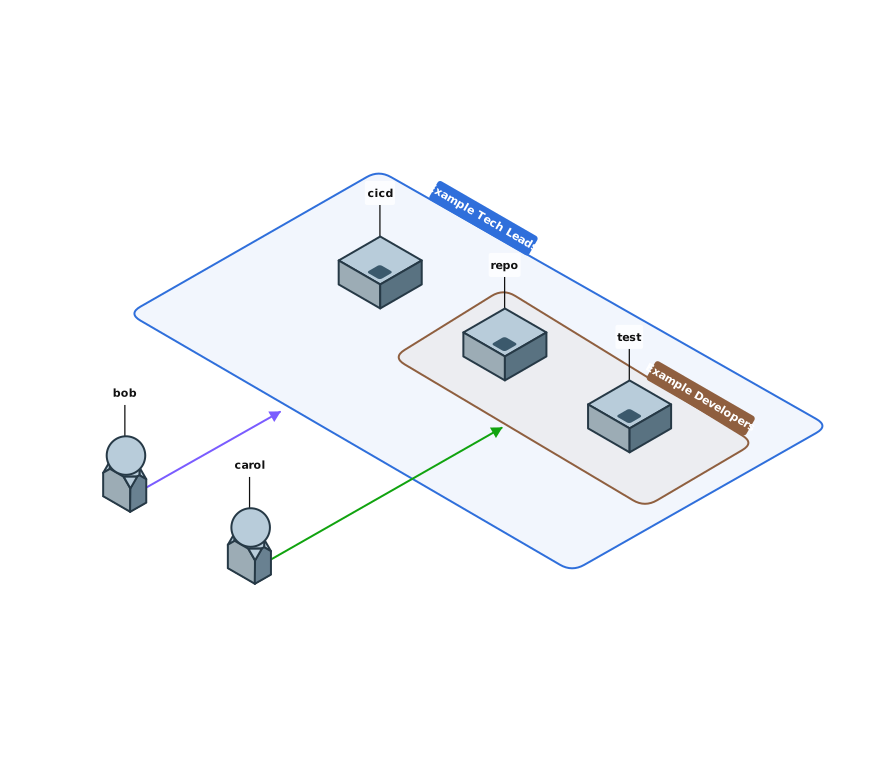
The Example Project access group includes the following hosts:
cicd- Project build server.repo- Source-code repository.test- Project test environment.
The following users require access to hosts in Example Project:
bob- Technical lead, needs access tocicd,repo, andtest.carol- Developer, needs access torepoandtest.
To provide alice with subadmin permissions, PrivX administrators must:
-
Create a subadmin role with the Access Group set to
Example Projectand the following Permissions:- access-roles-manage, roles-view
- hosts-view, hosts-manage
-
Assign the
Example Projectrole toalice. Nowalicehas subadmin permissions.
Then, alice sets up access for team members:
-
As the subadmin,
alicedecides to provide access to team members according to their titles (tech leads, developers). For this,alicecreates the rolesExample Tech LeadsandExample Developersin PrivX, with these conditions:- Access Group is set to
Example Project - No Permissions are enabled. These roles are only for granting access to hosts.
alicethen adds the team members to their respective roles using role's mapping rules:Example Tech Leads:bobExample Developers:carol
- Access Group is set to
-
Finally,
aliceallows these roles access to hosts by adding them as Accounts under the appropriate hosts.Example Tech Leads: Add accounts tocicd,repo, andtest.Example Developers: Add accounts torepo, andtest.
Example account setup:
-
On
cicd, onlyExample Tech Leadsare allowed:
-
On
repo,Example Tech LeadsandExample Developersare allowed, but with different target accounts.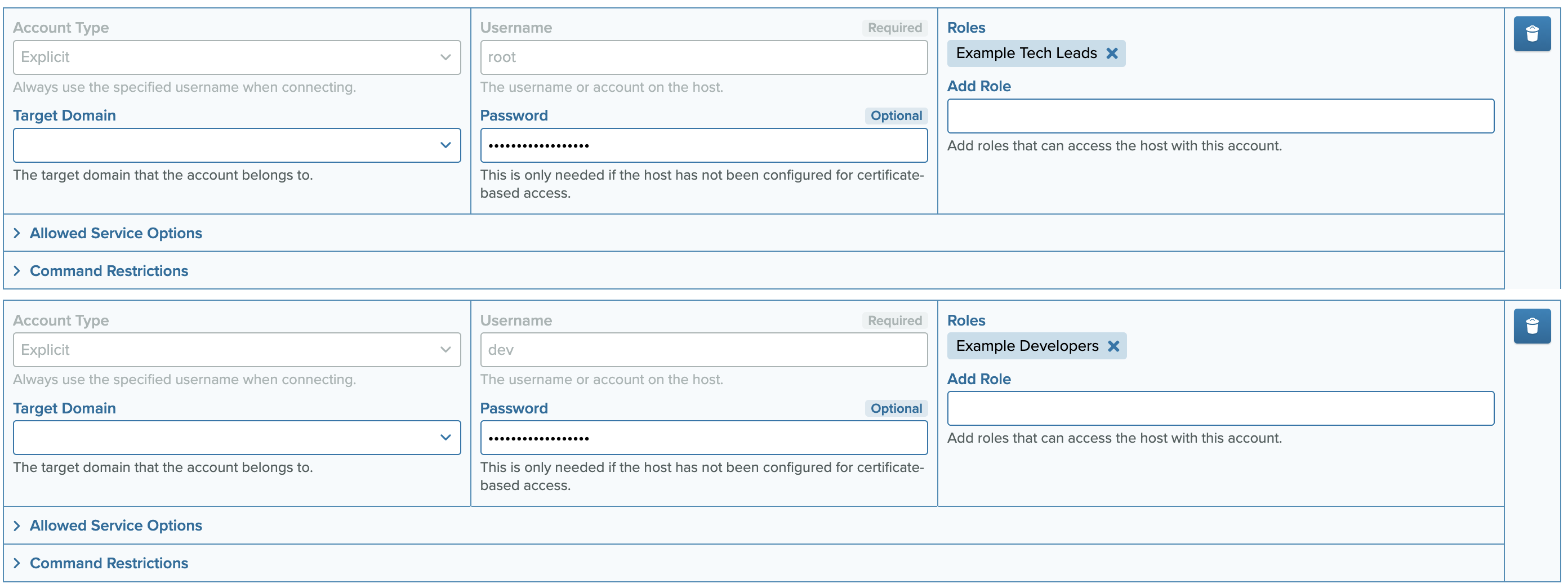
-
On
test, both roles are allowed with the same target account.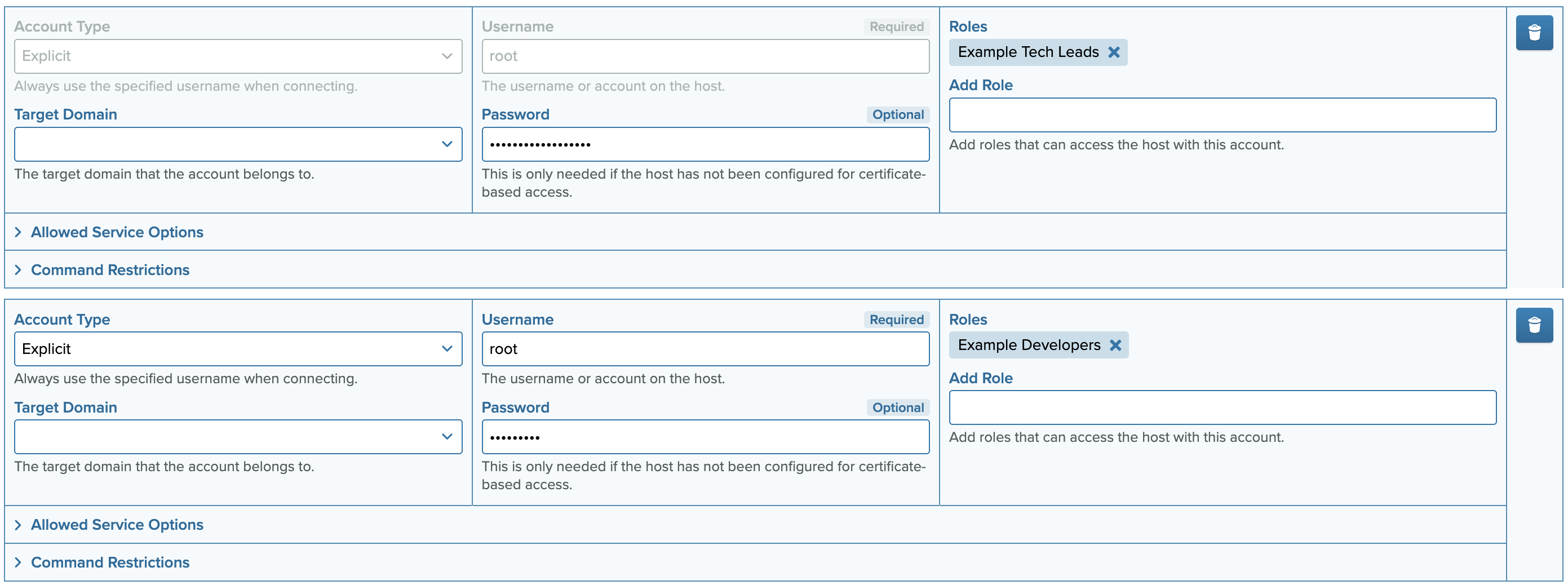
bobandcarolare now able to access the needed hosts.