Multi-Factor Authentication with PrivX Authorizer
The PrivX Authorizer app enables multi-factor authentication (MFA) for PrivX logins. Using PrivX Authorizer as MFA requires connectivity to the PrivX Mobile Gateway cloud service. The service is operated by SSH.
High-level setup involves actions from both PrivX admins and PrivX users.
PrivX admins must:
- Ensure your PrivX deployment satisfies the Prerequisites.
- Enable multi-factor authentication with PrivX Authorizer. This is done per user directory.
PrivX users must:
- Install the PrivX Authorizer app to your phone.
- Pair the PrivX Authorizer app with PrivX.
Prerequisites
- You must have a PrivX online license.
- Your license must enable the Mobile Application Gateway feature.
- Your PrivX Servers must be able to connect to the SSH Mobile Gateway cloud service endpoint: https://mobilegw.privx.io:443
Enabling MFA with PrivX Authorizer
To enable multi-factor authentication with PrivX Authorizer:
- Register your PrivX deployment with the Mobile Application Gateway. To do this, go to Administration→Deployment→Mobile Application Gateway, then click Register.
- On Administration→Directories page, Edit the directory for which you want to enable MFA.
- Expand Advanced Settings, then under Multi-Factor Authentication Settings, set MFA Type to PrivX Authorizer (mobile app).
- Save your changes. Users belonging to the directory are now required to authenticate using PrivX Authorizer for MFA.
After registering PrivX to the Mobile Application Gateway, you may wait for users to install and pair PrivX Authorizer before enabling MFA for their user directories. Doing so may ease transition to MFA.
Pairing PrivX Authorizer
Users can log in using PrivX Authorizer as follows:
-
Download and install the PrivX Authorizer app from the Google Play Store (for Android), or from Apple App Store (for iOS).
-
Pair the PrivX Authorizer with PrivX in either of the following ways:
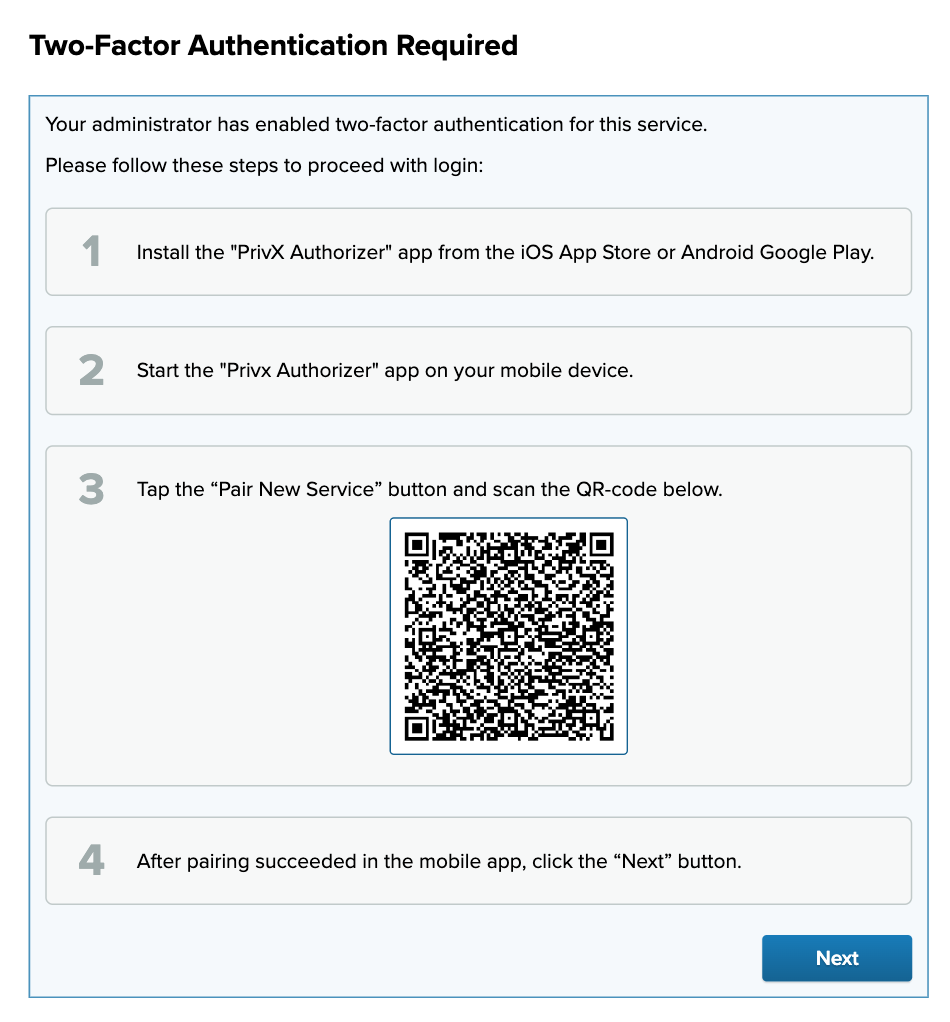
- Go to your Account page, then under Paired Devices, click Pair New Device. You will be presented with a QR code for pairing.
- If your account requires MFA, next time you log into PrivX you will be presented with a QR code for pairing.
-
Open PrivX Authorizer on your phone. Tap Pair New Service and scan the QR code. Tap Complete Pairing to complete pairing.
The PrivX Authorizer app should now display your PrivX service under My Services.
MFA Login in with PrivX Authorizer
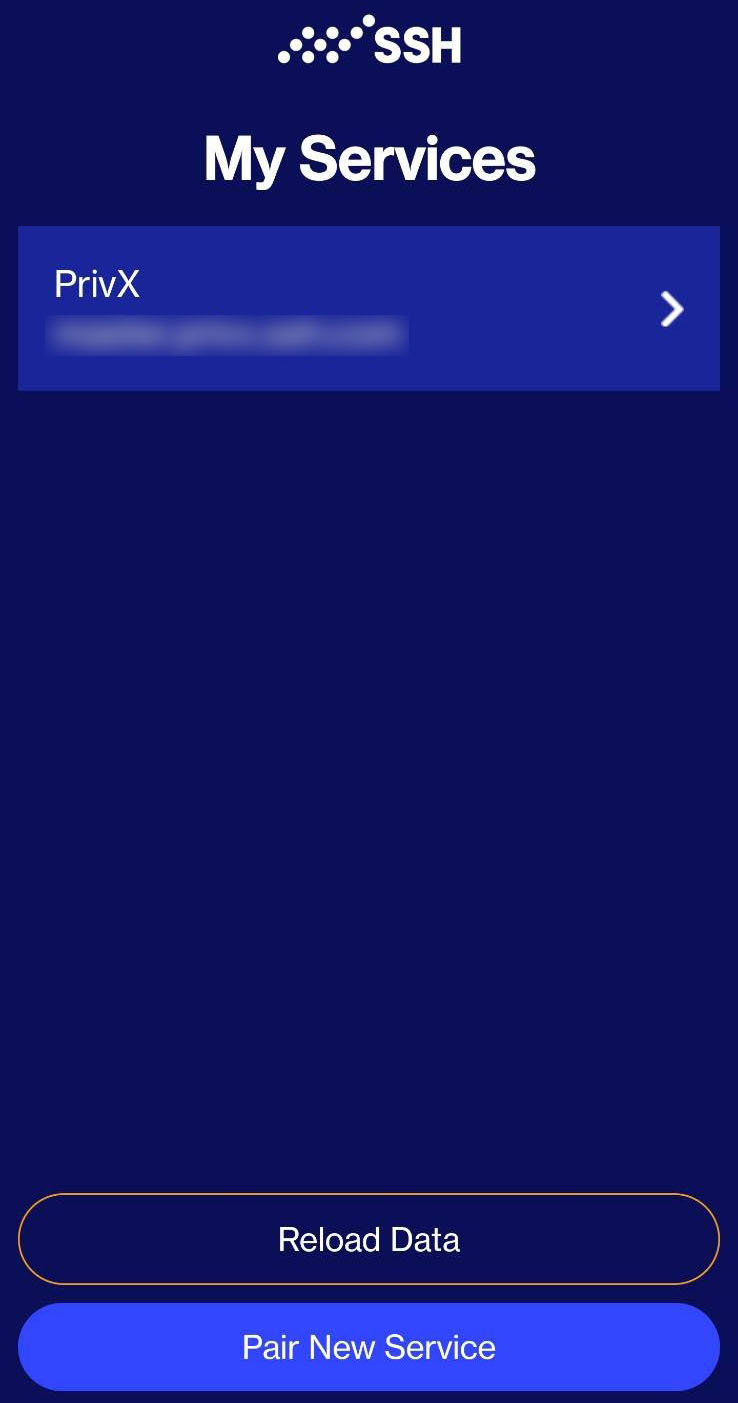
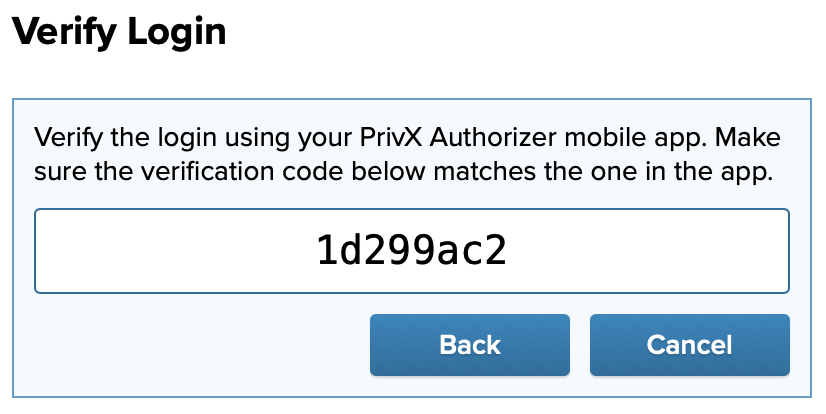
When MFA login is set up, subsequent logins to PrivX must be verified.
In your PrivX Authorizer app, tap your PrivX service, then under Pending Events, tap the authentication request.
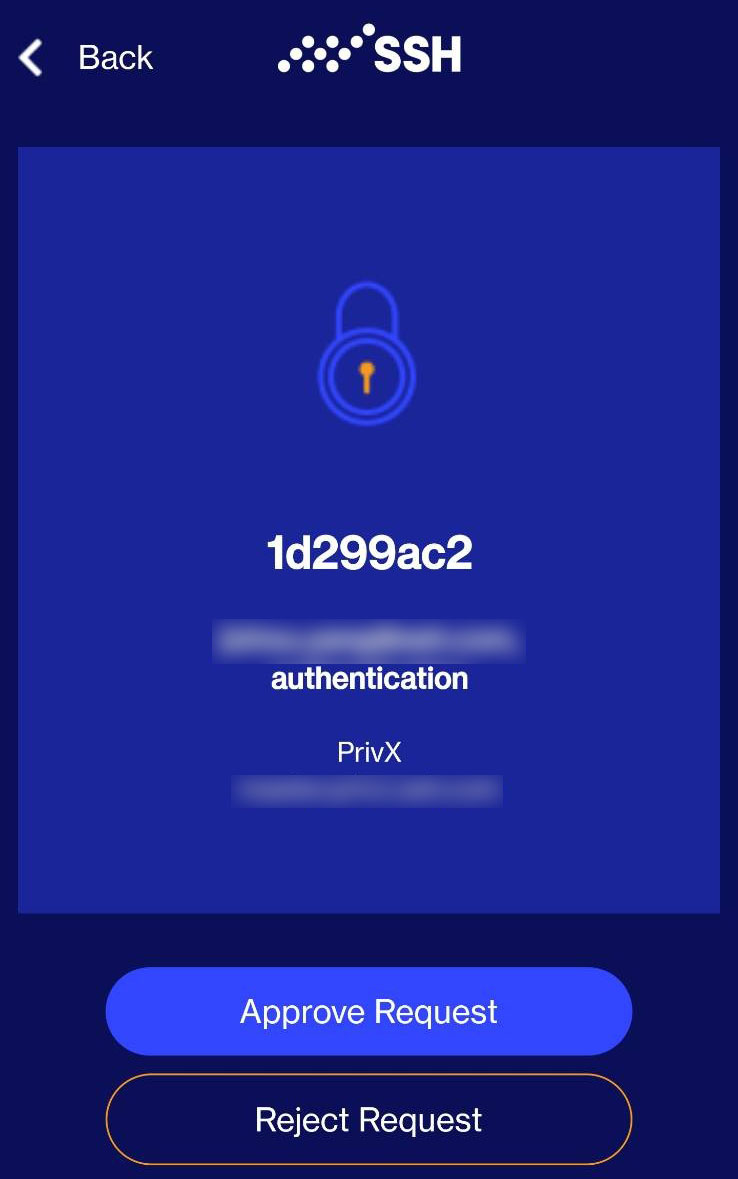
Check that the verification codes between the PrivX GUI and the PrivX Authenticator app match. Tap Approve Request to complete login.
Back in your browser, you should now be logged into the PrivX GUI.
Managing Paired Devices
Users can manage their paired devices via their Accounts page, under Paired Devices. Here you can:
- Test pairing
- Unpair devices
- Pair new devices
Mobile Gateway Architecture
MFA with PrivX Authorizer relies on the PrivX Mobile Gateway cloud service. The service is operated by SSH Communications Security.
The Mobile Gateway mobilegw.privx.io is hosted behind an AWS API Gateway, and the IP addresses are dynamic. For successful connection to the Mobile Gateway, ensure that your PrivX Servers:
- Resolve the Mobile-Gateway IP addresses correctly.
- TLS handshake and certificate validation to
mobile.gateway.privx.io:443succeeds.
In environments that don't support dynamic IPs, you can configure your PrivX to a static Mobile Gateway endpoint. To do so, go to Administration→Settings→Global and under Mobile Gateway Endpoint enable the Use Static IPs setting.
When Use Static IPs is enabled, PrivX Servers will use fixed.mobilegw.privx.io as the Mobile-Gateway endpoint, which will always resolve to two following static IPs:
- 34.246.145.86
- 34.241.193.96
Restart PrivX to apply your changes. Also ensure your firewall rules allow PrivX Servers to access these IPs.
To avoid storing sensitive information, PrivX Mobile Gateway collects the following, minimal needed data:
| Data Type | Description | Example Value |
|---|---|---|
| PrivX product key | Hash value of a public key per PrivX installation | product-sha256-sS6ACFY-QF5MArxe2Twr9Gxm0ImED1_YdDca5bpAh60 |
| PrivX user key | Hash value of a user id in a PrivX instance | da313ca13cd81fcb04fc8a95d5edc05ae8010203 |
| Mobile device key | Hash value of public key of PrivX Authorizer app | mobile-sha256-cKPwKD4IirMnXa_WDaixd4PKSZ4KlvkJhGTo4WTyduU |
| Device name | Hardware model of the mobile device | iPhone 14 Pro |
| Device OS | Device OS and version | iOS 17.2 |